Quotations Management
Quotations in Hbl's simpleBillBook allow you to create formal price estimates for potential customers before actual sales. This helps in business development, customer communication, and sales planning. Quotations can later be converted to sales invoices when customers confirm their orders.
Overview of Quotations
Quotations serve several important business functions:
- Price Estimation: Provide customers with formal price quotes
- Sales Proposals: Present product/service offerings professionally
- Order Reservations: Hold prices for specific periods
- Negotiation Basis: Serve as starting point for price discussions
- Conversion Potential: Can be easily converted to actual invoices
Viewing Quotations
To view all quotations:
- Navigate to Manage Sales → Quotations from the main sidebar
- You'll see a table listing all quotations (empty if no quotations exist)
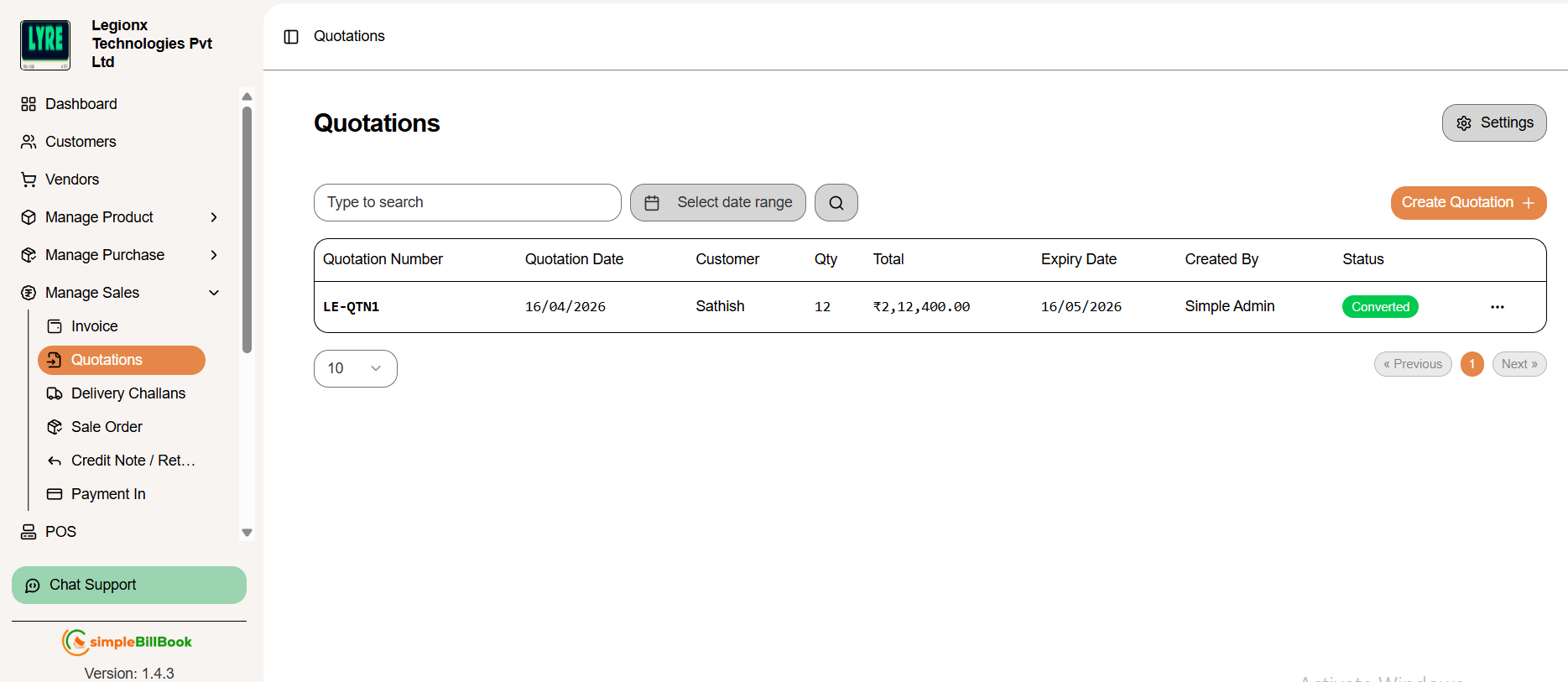 Figure 1: Quotations list page showing quotation management interface
Quotation Table Columns:
Quotation Information:
- Quotation Number: Unique identifier (e.g., QTN1, QTN2)
- Quotation Date: Date when quote was created
- Customer: Customer name
- Qty: Total quantity of quoted items
Financial and Status Details:
- Total: Total quoted amount
- Expiry Date: Validity period for the quotation
- Created By: User who created the quotation
- Status: Current status (Draft, Sent, Accepted, Expired, Converted)
Key Interface Elements:
- Create Quotation +: Button to create new quotation
- Type to search: Search functionality for existing quotations
- Select Date Range: Filter quotations based on selected date period
- Pagination: Navigation controls (e.g., "10" items per page)
- Empty State: "No results" message when no quotations exist
Creating a New Quotation
Step 1: Access Quotation Creation
Click Create Quotation + from the quotations list page.
Step 2: Fill Quotation Details
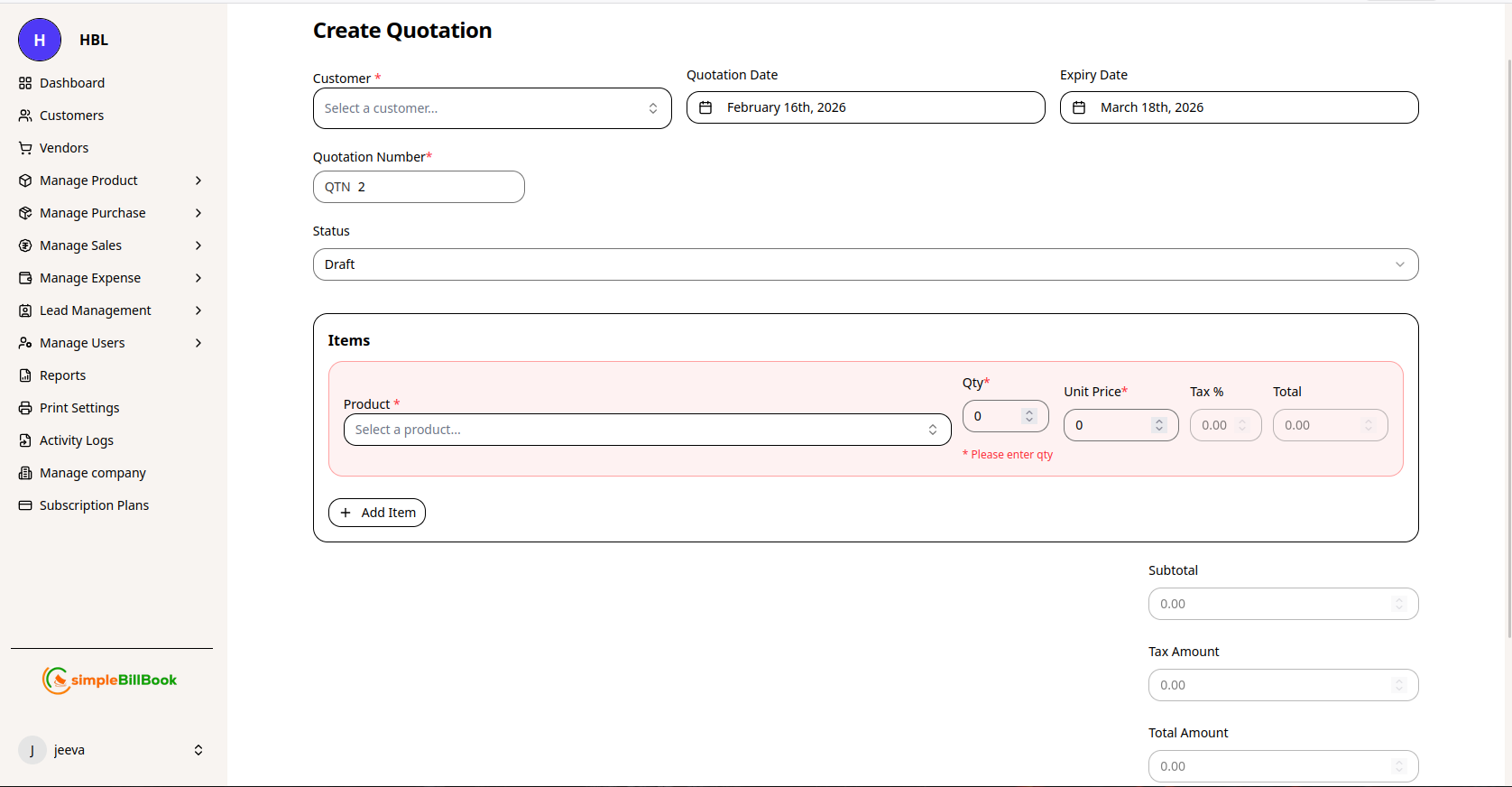 Figure 2: Form for creating new quotations
Header Information:
- Customer*: Select customer from dropdown (required)
- Quotation Date: Auto-filled with current date (editable)
- Expiry Date: Validity period for the quotation
- Quotation Number: Auto-generated based on settings
- Status: Defaults to "Draft" (can be changed to "Sent")
Item Selection:
- Select Product from inventory dropdown
- Enter Qty: Quantity being quoted
- Unit Price: Price per unit (can be edited)
- Tax %: Applicable tax rate (if any)
- Total: Line item total (auto-calculated: Qty × Unit Price)
- Click Add Item to add more products
Financial Summary:
- Subtotal: Sum of all item totals before tax
- Tax Amount: Calculated tax based on tax rates
- Total Amount: Final quoted amount including taxes
Step 3: Save Quotation
- Create Quotation: Save and generate printable version
- Cancel: Discard the quotation
Quotation Settings
Accessing Quotation Settings
From the quotations page, access settings (typically via gear icon or Settings menu).
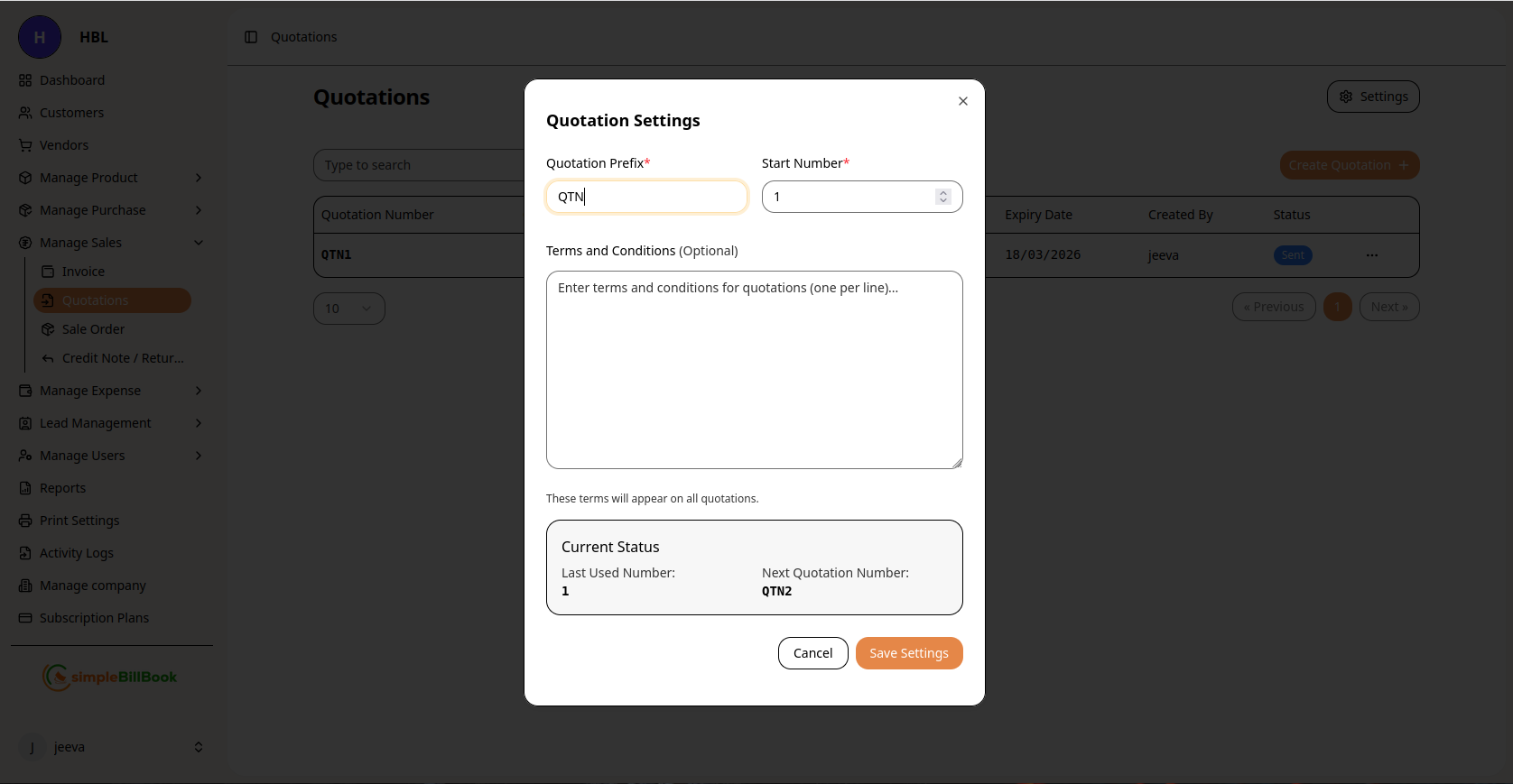 Figure 3: Configuration settings for quotations
Configurable Settings:
Numbering System:
- Quotation Prefix*: Custom prefix (default: "QTN")
- Start Number*: Beginning sequence number (required)
- Last Used Number: System tracks last generated number
- Next Quotation Number: Preview of next auto-generated number
Terms and Conditions:
- Default Terms: Enter standard terms (one per line)
- Validity Period: Default expiry duration
- Payment Terms: Standard payment conditions for quotes
- Special Conditions: Any quotation-specific terms
Display Settings:
- Default Expiry Days: Number of days quotes remain valid
- Tax Configuration: Default tax settings for quotes
- Template Selection: Quotation layout and design
Saving Settings:
- Click Save Settings to apply changes
- Use Cancel to discard modifications
- Settings affect all future quotations
Quotation Workflow
Typical Quotation Lifecycle:
1. Creation Stage (Status: Draft)
- Quotation created with items and pricing
- Can be edited and modified
- Not yet communicated to customer
2. Review Stage (Status: Pending Review)
- Internal review for accuracy
- Manager approval if required
- Pricing validation
3. Communication Stage (Status: Sent)
- Sent to customer for consideration
- Customer may request modifications
- Follow-up communication
4. Negotiation Stage (Status: Negotiating)
- Price or terms negotiation
- Multiple quote revisions possible
- Documentation of changes
5. Acceptance Stage (Status: Accepted)
- Customer accepts quotation
- Ready for order fulfillment
- Can be converted to invoice
6. Conversion Stage (Status: Converted)
- Converted to sales invoice
- Inventory reserved or allocated
- Payment processing initiated
7. Expiration Stage (Status: Expired)
- Validity period ended
- Customer didn't accept in time
- Can be renewed if needed
8. Rejection Stage (Status: Rejected)
- Customer declined the quote
- Reason documented for analysis
- Case closed
Types of Quotations
1. Standard Price Quotations
- Purpose: Provide pricing for standard products
- Features: Fixed prices, standard terms
- Validity: Typically 30-60 days
2. Project Quotations
- Purpose: Quote for complex projects or services
- Features: Detailed breakdown, milestones
- Validity: Project-specific timeframe
3. Bulk Order Quotations
- Purpose: Quotes for large quantity orders
- Features: Volume discounts, special terms
- Validity: May have shorter validity
4. Custom Product Quotations
- Purpose: Quotes for customized products
- Features: Specifications, lead times, special pricing
- Validity: Until specifications change
5. Service Quotations
- Purpose: Quotes for services rather than products
- Features: Hourly rates, service descriptions
- Validity: Service availability period
Best Practices for Quotation Management
Creating Effective Quotations:
- Professional Formatting: Use clear, professional layout
- Detailed Descriptions: Include product specifications and features
- Clear Pricing: Show unit prices, quantities, and totals clearly
- Validity Period: Always include expiry date
- Contact Information: Provide multiple contact options
Customer Communication:
- Prompt Submission: Send quotes quickly after request
- Professional Presentation: Accompany with professional cover note
- Follow-up System: Track quote status and follow up
- Flexibility: Be prepared to negotiate terms
Internal Processes:
- Approval Workflow: Implement approval for significant quotes
- Template Consistency: Use standard templates for uniformity
- Database Maintenance: Keep product and price information current
- Performance Tracking: Monitor quote conversion rates
Validity Management:
- Clear Expiry Dates: Always specify validity period
- Renewal Process: Have process for expiring quotes
- Price Protection: Honor quoted prices within validity
- Communication of Changes: Notify customers of expiring quotes
Converting Quotations to Invoices
Conversion Process:
- Locate the accepted quotation in the list
- Click Convert to Invoice or similar action
- System creates new invoice with quotation details
- Quotation status updates to "Converted"
- Inventory can be reserved or allocated
Partial Conversion:
- Convert only selected items from quotation
- Remaining items stay in quotation
- Useful for phased deliveries
- Maintains quote relationship
Price Adjustments During Conversion:
- Final prices can be adjusted at conversion
- Document reasons for price changes
- Maintain audit trail of changes
- Customer confirmation if significant changes
Integration with Other Modules
Customer Management:
- Quote History: Tracks all quotes sent to each customer
- Conversion Tracking: Monitors quote-to-invoice conversion rates
- Customer Preferences: Records customer response patterns
Inventory Management:
- Stock Availability: Can check stock during quote creation
- Reservation Option: Can reserve stock for quoted items
- Lead Time Information: Shows availability dates
Sales Management:
- Pipeline Tracking: Quotes represent sales pipeline
- Forecasting: Helps predict future sales
- Performance Analysis: Tracks quote success rates
Product Management:
- Price Testing: Test new prices through quotations
- Product Interest: Gauges customer interest in products
- Customization Tracking: Records custom product requests
Common Scenarios and Solutions
Scenario 1: Customer Requests Multiple Revisions
Solution:
- Create new revision with updated version number
- Document changes from previous version
- Track all communication about changes
- Consider limiting number of free revisions
Scenario 2: Price Changes After Quote Sent
Solution:
- Create new quote with updated prices
- Communicate reason for price change
- Honor original quote if within validity period
- Document supplier price increases if applicable
Scenario 3: Partial Order from Quotation
Solution:
- Convert only ordered items to invoice
- Update quotation for remaining items
- Adjust validity if needed
- Document partial acceptance
Scenario 4: Competitor Quote Comparison
Solution:
- Analyze competitor pricing if known
- Highlight value differentiation
- Consider strategic pricing adjustments
- Focus on service/quality advantages
Scenario 5: Expired Quote Revival
Solution:
- Check if prices are still valid
- Create new quote with current pricing
- Reference original quote number
- Communicate reason for new quote
Reports and Analytics
Available Quotation Reports:
- Open Quotations: All active quotations by status
- Quote Conversion Rate: Percentage converted to sales
- Quotation Aging: How long quotes have been pending
- Customer Quote Analysis: Quotes by customer and response
- Product Quote Analysis: Most frequently quoted products
- Validity Expiry Report: Quotes expiring soon
Key Metrics to Monitor:
- Conversion Rate: Percentage of quotes becoming sales
- Response Time: Average time to provide quotes
- Quote Value: Average value of quotations
- Expiry Rate: Percentage of quotes expiring unconverted
- Revision Frequency: Average revisions per quote