Sales Order Management
Sales Orders in simpleBillBook allow you to formally document customer orders, track order fulfillment, and manage delivery schedules. Sales orders bridge the gap between quotations and invoices, providing a structured way to manage customer orders through the fulfillment process.
Overview of Sales Orders
Sales Orders serve as formal commitments to deliver goods or services to customers. They provide:
- Order Confirmation: Formal record of customer order
- Fulfillment Tracking: Monitor order processing stages
- Delivery Scheduling: Plan and track delivery timelines
- Inventory Management: Reserve stock for confirmed orders
- Invoice Preparation: Basis for creating final invoices
Viewing Sales Orders
To view all sales orders:
- Navigate to Manage Sales → Sale Order from the main sidebar
- You'll see a table listing all sales orders (empty if no orders exist)
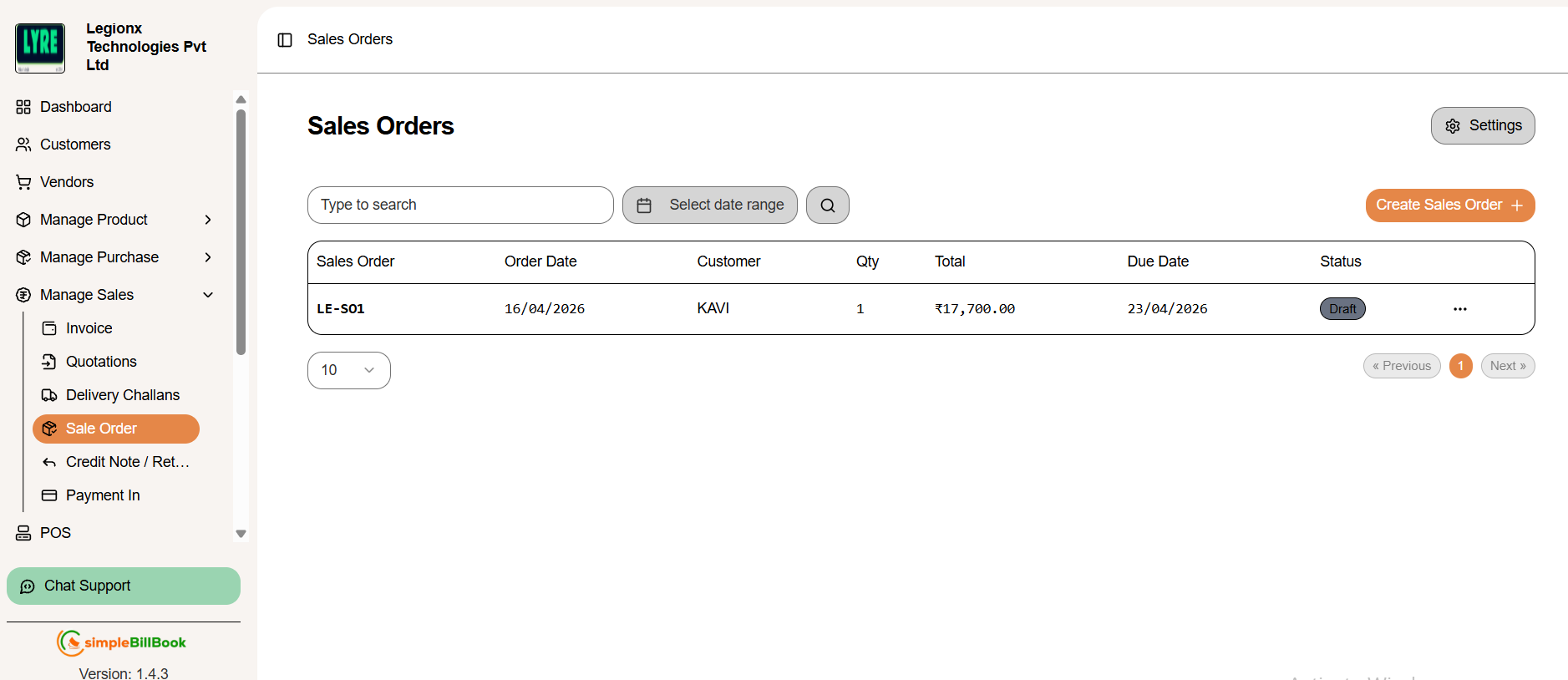 Figure 1: Sales orders list showing order management interface
Sales Order Table Columns:
Order Identification:
- Sales Order: Unique order number (e.g., SO1, SO2)
- Order Date: Date when order was placed
- Customer: Customer name
- Qty: Total quantity of ordered items
Order Details:
- Total: Total order value
- Due Date: Expected delivery/completion date
- Status: Current status (Draft, Confirmed, Processing, Shipped, Delivered, Cancelled)
Interface Elements:
- Create Sales Order +: Button to create new sales order
- Type to search: Search functionality for existing orders
- Select Date Range: Filter sales orders using selected date range
- Pagination: Navigation controls (e.g., "10" items per page)
- Empty State: "No results" message when no orders exist
- Next >: Navigation to next page when available
Creating a New Sales Order
Step 1: Access Sales Order Creation
Click Create Sales Order + from the sales orders list page.
Step 2: Fill Sales Order Details
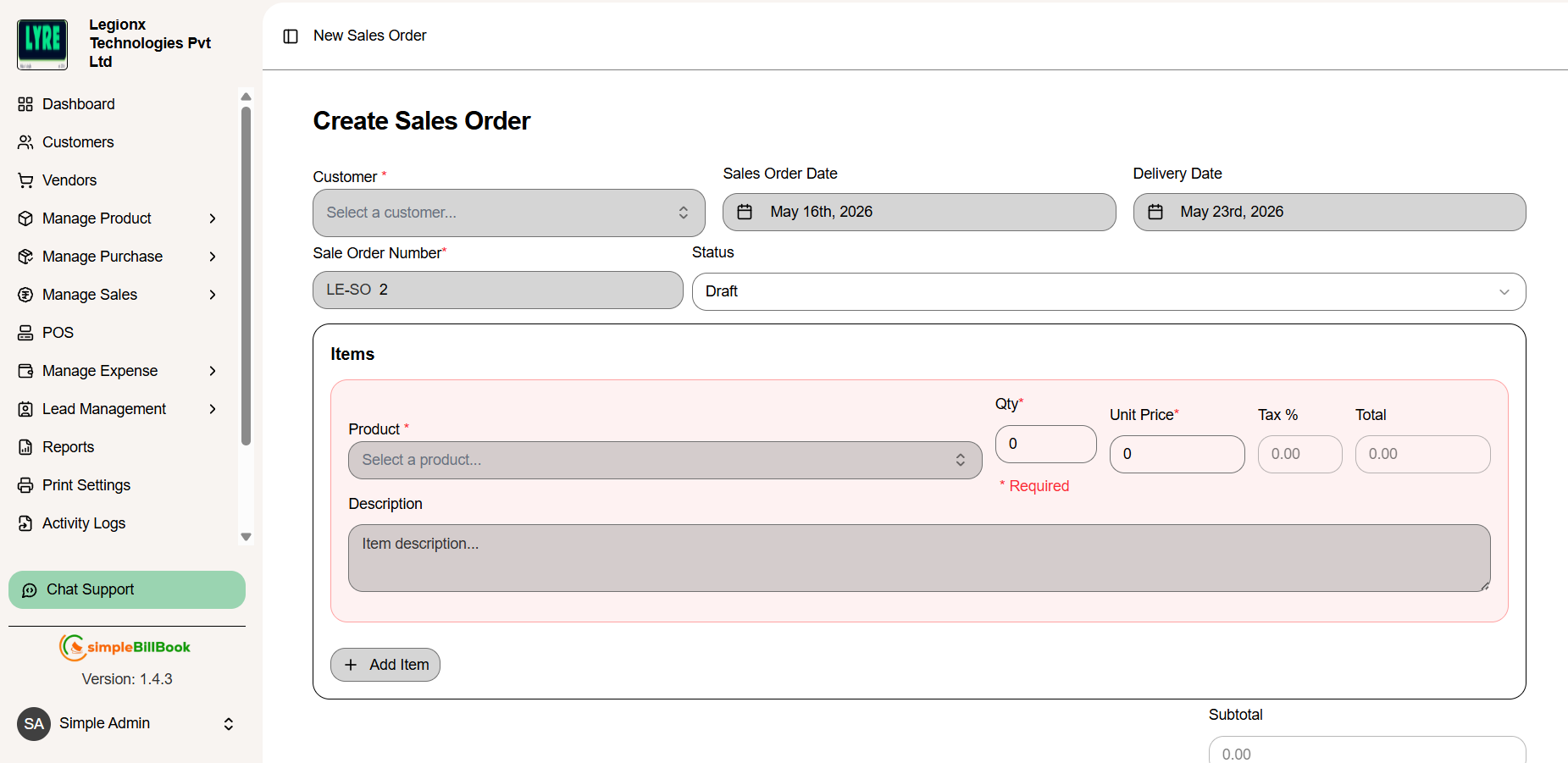 Figure 2: Form for creating new sales orders
Header Information:
- Customer*: Select customer from dropdown (required)
- Customer Details: Shows company name if available
- Sales Order Date: Auto-filled with current date (editable)
- Delivery Date: Expected delivery date to customer
- Sales Order Number: Auto-generated based on settings
Item Selection:
- Select Product from inventory dropdown
- Description: Add additional details or notes for the sales order
- Enter Qty*: Ordered quantity (required)
- Unit Price*: Price per unit (can be edited)
- Tax %: Applicable tax rate (if any)
- Total: Line item total (auto-calculated: Qty × Unit Price)
- Click Add Item to add more products
Order Summary:
- Subtotal: Sum of all item totals before tax
- Tax Amount: Calculated tax based on tax rates
- Total Amount: Final order amount including taxes
- Shipping Charges: Can be added if applicable
- Discounts: Can be applied to entire order or specific items
Step 3: Save Sales Order
- Save as Draft: Save for later processing
- Save and Confirm: Save and mark as confirmed
- Save and Reserve Stock: Save and reserve inventory
- Cancel: Discard the sales order
Sales Order Actions
Once a sales order is created, you can perform various actions on it:
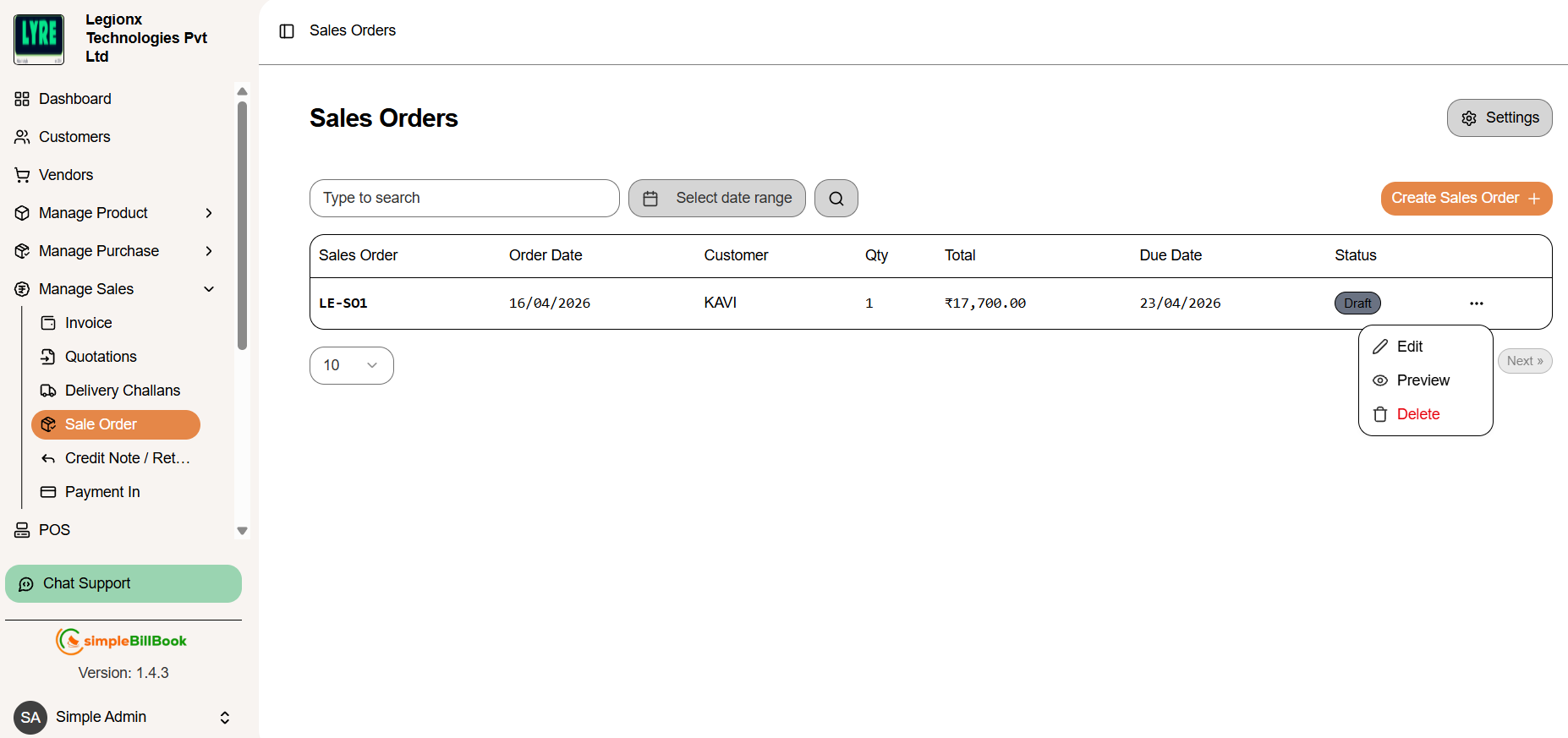 Figure 3: Sales order with available action buttons
Available Actions
| Action | Description |
|---|---|
| Edit | Modify sales order details (items, quantities, prices) |
| Preview | View a printable version of the sales order |
| Delete | Remove the sales order from the system |
Example Order Data
| Field | Value |
|---|---|
| Sales Order | S01 |
| Order Date | 17/02/2026 |
| Customer | bharath |
| Qty | 1 |
| Total | ₹46,350.00 |
| Due Date | 24/02/2026 |
Action Workflow
- Edit: Use when customer requests changes before confirmation
- Preview: Review order details before sending to customer
- Delete: Remove cancelled or duplicate orders
Sales Order Settings
Accessing Sales Order Settings
From the sales orders page, access settings via gear icon or Settings menu.
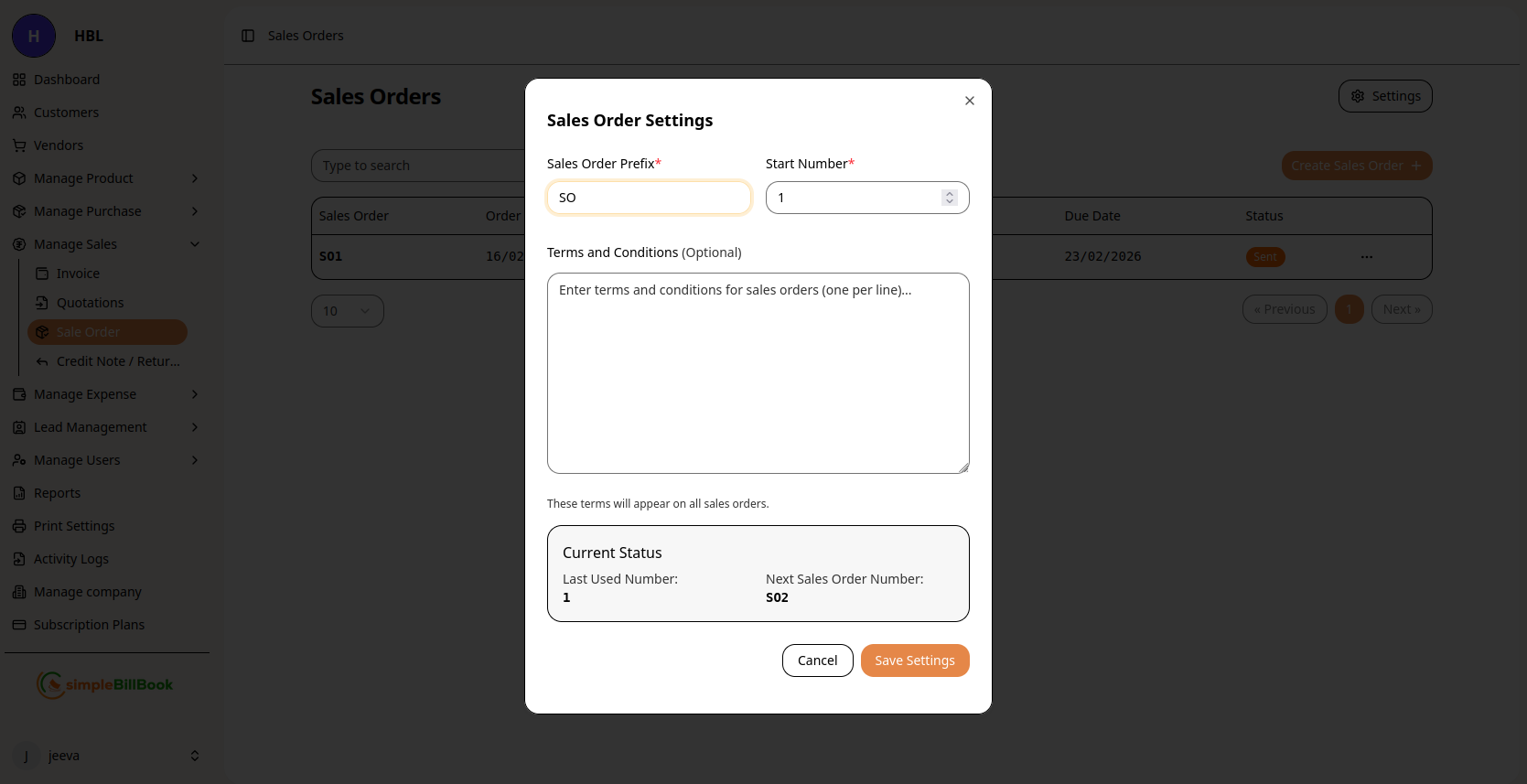 Figure 4: Configuration settings for sales orders
Configurable Settings:
Numbering System:
- Sales Order Prefix*: Custom prefix (default: "SO")
- Start Number*: Beginning sequence number (required)
- Last Used Number: System tracks last generated number
- Next Sales Order Number: Preview of next auto-generated number
Terms and Conditions:
- Default Terms: Enter standard terms (one per line)
- Delivery Terms: Standard delivery conditions
- Payment Terms: Payment conditions for orders
- Cancellation Policy: Order cancellation terms
Saving Settings:
- Click Save Settings to apply changes
- Use Cancel to discard modifications
- Settings affect all future sales orders
Sales Order Workflow
Complete Order Processing Lifecycle:
1. Order Creation (Status: Draft)
- Sales order created from quotation or directly
- Items and quantities specified
- Pricing confirmed
2. Order Confirmation (Status: Confirmed)
- Customer confirms acceptance
- Order locked for processing
- Stock may be reserved
3. Order Processing (Status: Processing)
- Internal processing begins
- Items picked/packed
- Documentation prepared
- Shipping arranged
4. Shipping Stage (Status: Shipped)
- Order dispatched to customer
- Tracking information recorded
- Customer notified
5. Delivery Stage (Status: Delivered)
- Order delivered to customer
- Customer acknowledgment received
- Ready for invoicing
6. Invoicing Stage (Status: Invoiced)
- Converted to sales invoice
- Payment processing begins
- Order closed
7. Cancellation Stage (Status: Cancelled)
- Order cancelled before fulfillment
- Stock reservation released
- Reason documented
Types of Sales Orders
1. Standard Sales Orders
- Purpose: Regular customer orders
- Features: Standard products, normal delivery
- Processing: Follows standard workflow
2. Back Orders
- Purpose: Orders for out-of-stock items
- Features: Items to be delivered when available
- Processing: Partial shipments possible
3. Drop Ship Orders
- Purpose: Supplier ships directly to customer
- Features: No inventory handling
- Processing: Coordinate with supplier
4. Pre-Orders
- Purpose: Orders for future product releases
- Features: Future delivery dates
- Processing: Hold until product available
5. Recurring Orders
- Purpose: Regular repeating orders
- Features: Scheduled deliveries
- Processing: Automated generation
6. Service Orders
- Purpose: Orders for services rather than products
- Features: Service descriptions, timeframes
- Processing: Service delivery tracking
Best Practices for Sales Order Management
Creating Effective Sales Orders:
- Complete Customer Information: Ensure all details are accurate
- Clear Item Specifications: Include product codes, descriptions
- Accurate Pricing: Verify prices before confirmation
- Realistic Dates: Set achievable delivery timelines
- Special Instructions: Note any customer-specific requirements
Order Processing:
- Status Updates: Keep order status current throughout process
- Communication: Inform customers of status changes
- Documentation: Maintain all order-related documents
- Quality Checks: Verify order accuracy at each stage
Inventory Coordination:
- Stock Verification: Check availability before confirming
- Reservation Management: Properly reserve stock for orders
- Backorder Handling: Clear process for out-of-stock items
- Inventory Updates: Update stock levels appropriately
Customer Service:
- Order Tracking: Provide customers with order status
- Delivery Updates: Communicate delivery progress
- Issue Resolution: Quick response to order issues
- Feedback Collection: Gather customer feedback on order process
Converting Sales Orders to Invoices
Standard Conversion Process:
- When order status reaches "Delivered" or appropriate stage
- Click Convert to Invoice on sales order
- System creates invoice with order details
- Sales order status updates to "Invoiced"
- Payment processing can begin
Partial Delivery Conversion:
- Convert delivered items to invoice
- Update sales order for remaining items
- Create multiple invoices for partial deliveries
- Track complete order fulfillment
Price Adjustments at Conversion:
- Final prices can be adjusted if needed
- Document reasons for price changes
- Maintain relationship to original order
- Customer confirmation for significant changes
Integration with Other Modules
Customer Management:
- Order History: Tracks all orders from each customer
- Customer Preferences: Records order patterns and preferences
- Credit Management: Monitors customer credit against orders
Inventory Management:
- Stock Reservation: Reserves inventory for confirmed orders
- Demand Planning: Provides data for inventory forecasting
- Pick Lists: Generates picking lists for order fulfillment
Sales Management:
- Pipeline Tracking: Orders represent confirmed sales
- Revenue Forecasting: Predicts future revenue from orders
- Performance Analysis: Tracks order fulfillment efficiency
Purchase Management:
- Purchase Trigger: May trigger purchase orders for stock
- Supplier Coordination: For drop ship orders
- Cost Tracking: Tracks cost of goods for orders
Shipping and Logistics:
- Delivery Scheduling: Coordinates with delivery schedules
- Shipping Documentation: Generates shipping labels and documents
- Tracking Integration: Updates order status with tracking info
Common Scenarios and Solutions
Scenario 1: Partial Stock Availability
Solution:
- Create backorder for unavailable items
- Process partial shipment for available items
- Update customer on expected dates for remaining items
- Create separate invoices for each shipment
Scenario 2: Customer Changes Order After Confirmation
Solution:
- Assess impact on processing
- Create order amendment if possible
- Cancel and recreate if significant changes
- Document all changes and communications
Scenario 3: Delivery Delays
Solution:
- Update order with new delivery date
- Communicate proactively with customer
- Consider partial delivery if possible
- Document reason for delay
Scenario 4: Damaged Goods During Delivery
Solution:
- Process return through credit note system
- Create replacement order if needed
- Update original sales order status
- Document damage and resolution
Scenario 5: Bulk Order with Special Terms
Solution:
- Create custom terms in sales order
- Set up special pricing or discounts
- Coordinate special delivery requirements
- Document all special arrangements
Reports and Analytics
Available Sales Order Reports:
- Open Orders Report: All orders not yet delivered/invoiced
- Order Aging Report: How long orders have been in each status
- Customer Order Analysis: Orders by customer and value
- Product Order Analysis: Most ordered products
- Fulfillment Performance: Order processing efficiency
- Backorder Report: All pending backorders
Key Metrics to Monitor:
- Order Cycle Time: From order to delivery
- Order Accuracy: Percentage of error-free orders
- On-Time Delivery: Percentage delivered by promised date
- Order Value: Average value per order
- Backorder Rate: Percentage of items on backorder